Content
1.General
2. Definition of the Thermodynamic System and Calculation
2.1. Definition of the phases of the thermodynamic systems
2.2. Selection of the Substances in the Phases from the AsTher Database
2.3.Definition of the Calculation Conditions
2.4. Execute Calculation
3. Possible Errors and Trouble Shooting - Behaviour of Process Calculator and MS Excel
4. Advanced options
4.1. State functions Cp, H, G, S and Energy Balance
4.2. Element Balance
4.3. Inverse calculation of an equilibrium state
4.4. Data capture and recording using calculations
4.5. Graphic chart of the calculation results
4.6. Visual display of the calculations results
4.7. Process Calculator as Macro: Parameter Definition and Create Parameters for Macro Calculations
5. Examples
5.1. Quick Start: Create MS Excel File (Book) for calculations using AsTher Process Calculator for MS Excel, Step by Step
5.2. CH4-Combustion, Simple calculation using AsTher Process Calculator for MS Excel, an example for simple calculations
5.3. Carbon gasification by
Water in depends of temperature and pressure, Create graphics using
different parameter.
5.4.
Enthalpy-Concentration, Liquid-Gas-Concentration-Diagrams of Ethanol-Water
Mixtures using empirical activity coefficients.
5.5. Example for inverse Calculation using AsTher Process Calculator for MS Excel
5.6. Aqueous substances,
solubility and heat of solution
1. General
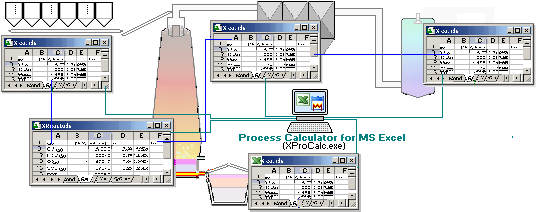
Process Calculator for MS Excel (XProCalc.exe) calculates
thermodynamic equilibriums corresponding to the input data in a MS Excel
Sheet (Table), writes the calculation result in the same MS Excel
Sheets and supports MS Excel Versions 97 until MS Excel Version 20XX for 64 bit
operations systems.
Important functions of the user interface
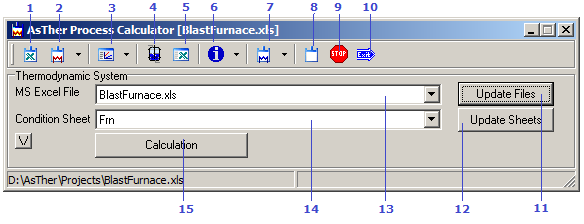
|
1..Create |
Application
creates a new MS Excel Book as thermodynamic system |
2. Submenus
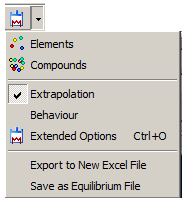 |
Elements: selection of the elements for thermodynamic system
Compounds: system selection of the substances for thermodynamic
system,
before "Condtions Sheet" is the phase sheet of the system.
Extrapolation : Enable extrapolation of the thermodynamic date
(extrapolation is often recommandet)
Behaviour : Options of the behaviour of the thermodynamic
system
Extended Options: calculation options
Export to New Excel File: the thermodynamic system is exported
in an new MS Excel book without linked data.
(new files will be independent of the source file)
Save as Equilibrium File: the thermodynamic system is exported
in an AsTher Equilibrium-File |
3. Submenus
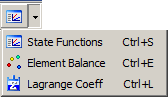 |
State Function: Values of the state functions are written in the
phase sheets of the thermodynamic system
Element Balance: Elementary balance of the thermodynamic
calculations is written in a new MS Excel Sheet depends of
calculations. When a calculation is new carried out, then elementary
balance is updated.
Lagrange Coefficients of the elements in the thermodynamic
system |
|
4.Visualisation |
Visual display of the calculation results in a picture |
|
5.
Show MS Excel |
MS
Excel Book is shown, when the current system is hidden in display |
6.Submenus
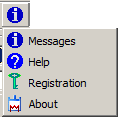 |
Messages: shows application messages
Help: show help files
Registration: Software registration informations
About: Software registration informations |
7. Submenus
|
Execute external application of AsTher
Pure Substance
Reaction
Database Administration
Shows the project directory in MS Windows Expolorer |
|
8. Reset |
Deletes calculationresults in MS Excel File |
|
9. Stop |
the current calculation is broken |
|
10.Close |
Close application |
|
11. Update list in (13) |
Update the list of the MS Excel Books in the field (13) , which
are open |
|
12..Update list in (14) |
Update the list of the sheets in the field (14) of the selected
MS Excel Book |
|
13. MS Excel Books |
List of the MS Excel Books, which are open |
|
14. Sheets |
List of the sheets if the MS Excel Books in the field (13) |
|
15. Calculation |
Calculation of thermodynamic equilibrium, which are defined in the
sheet in (14) of the file in (13) |
|
|
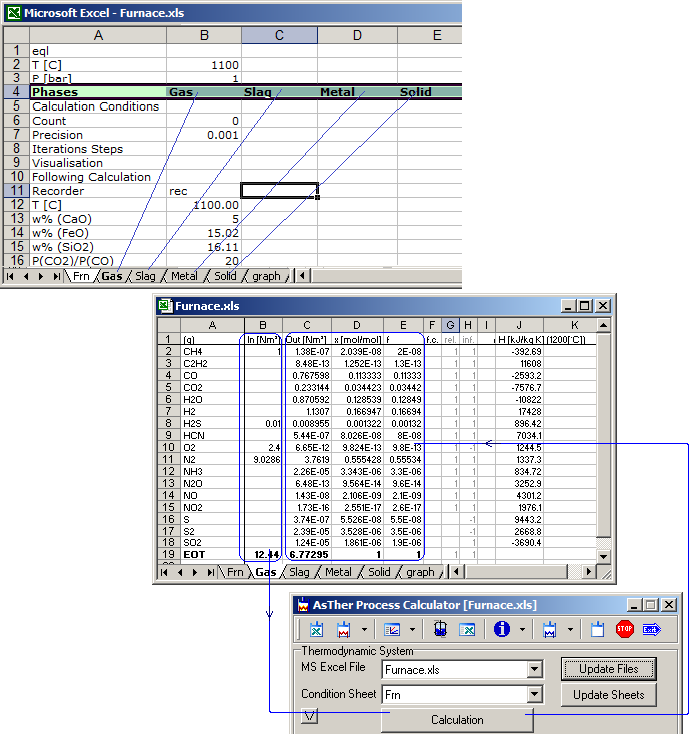
In the example above, the thermodynamic system is defined in the sheet
Frn.
The thermodynamic system contains 4 phases: Gas, Slag, Metal, Solid,
which exists as separate sheet.
Input data are given in column [B] in the phase sheets.
Calculation results is written by application in the columns [C],
[D],[E] . . in the phase sheets.
The Excel sheets are input and output file of the calculations.
MS Excel must be
installed in your computer.
When the application is executed without parameters, then you have
already to open an MS Excel file, and you can select an open file, as
the example above shows.
Several Applications for process simulation and process
control use
MS Excel tables for data input/output.
Most of the Applications for the simulation can not calculate any
equilibrium state.
Using MS Excel interface, you can integrate Process Calculator for
MS Excel
(XProCalc.exe) into the software for process simulations,
and calculate equilibrium states.
You can calculate also as macro, but you can calculate without macro or as single
application.
When you deactivate macros in MS Excel, you can also run Process
Calculator for MS Excel using a symbolic link or in another external
program.
2. Definition of the
Thermodynamic System and Calculation
2.1. Definition of the phases of the thermodynamic
systems
Every phase must be defined in a separate sheet.
The following
picture shows, how a phase is defined in the thermodynamic system
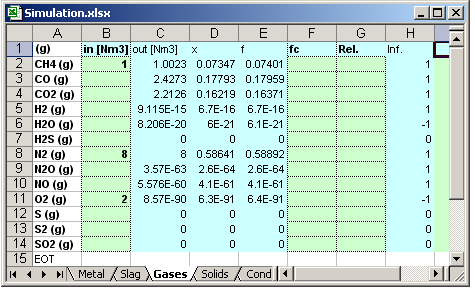
Column A:
Cell A1, the state of the phase is given as: (g), (l), or (s)
The cells A2 to A256 contains substance names
After the last substance, the tables should end EOT. All data behind
the cell EOT are not regarded.
Column B: contains input values. In the cell B1, the
dimension should be given.
Valid values are: in [mol], in [kg], in [g], in [lb] and for gases also
in [m³], in [Nm³], in [ft³]
When no any valid dimension is given, the dimensions are regarded as
[mol].
Column C: contains output values as calculations result.
In the cell C1, the dimension should be given.
Valid values are: out [mol], out [kg], out [g], out [lb] and for gases
also out [m³], out [Nm³], out [ft³]
When no any valid dimension is given, the dimensions are regarded as
[mol].
All Cells C1 to C(until EOT) are overwritten, when a calculation
succeed.
Column D: contains output concentration values as
calculation
result.
In the cell D1, the dimension should be given
valid values: x, w, w%;
x means mol ration,
w is
weight ratio,
w% is wait ratio as per cent.
When no any dimension defined, the default output concentrations are in
mol
ratio.
All Cells D1 to D(until EOT) are overwritten, when a calculation
succeed.
Column E: contains fugacity (f) of gas substances or
activity
(a) of the solid or liquid substances.
All Cells E1 to E(until EOT) are overwritten, when a calculation
succeed.
Column F: Activity
or fugacity coefficient of a substance.
When the coefficients are known,
you can enter values.
When no any value is given, the value is regarded as 1.
The Cells G1 to G(until EOT) is not overwritten by application.
When a substance can be exist only as pure substance, like soot in
combustion processes,
enter -1 or '(1), (number one in parenthesis
or Some
times may be apostrophe necessary)
Column G: Mass relation of the input values, which reacts in the
equilibrium system.
valid values: 0 to 1.
When no any value is given, the value is regarded as 1.
When an invalid value is given, the value is also regarded as 1.
When in column B is written 10 kg for a substance for
initial mass and in column G is written 0.25
then the reacting mass is 2.5 kg. the residual mass of 7.5 kg is exists in
products without reaction.
Column H. Information of the formation of substances
1: system is conveniently for formation;
-1: Formation is inhibited ;
0: formation is is disabled or inpossible.
(ext): thermodynamic data are extrapolated.
2.2. Selection of the Substances in the Phases from the AsTher
Database
( See also more detailed
example)
You can enter substances in a phase sheet manual. Phase format is given
in cap. (2.1.).
You can also select substances from database as following
When you execute XProCalc.exe without parameters or using parameters,
press button for thermodynamic system, as the following picture
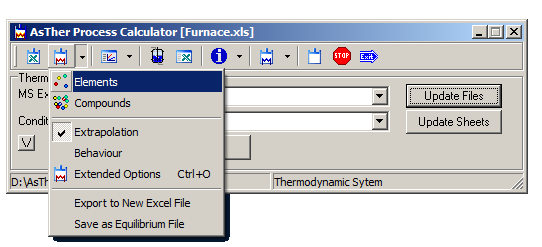
In the following dialog box, select the elements
of the requested substances pressing the buttons for the elements. The
selected elements are shown in red colour.
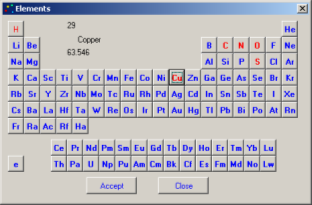
Select the elements of the thermodynamic Press button Accept
.
2.2.1. Compounds Selection:
Select a sheet for Conditopn Sheet, in which is defined the thermodynamic system,
in following picture Frn
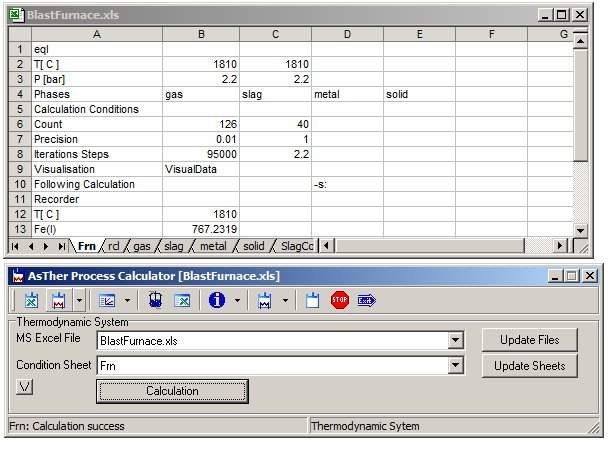
In the main window, press drop down menu [Compounds of ->] and in the Submenu select
a Phase ( in the following picture like [slag] ).
The application creates the submenus for phase composition (for gas, slag,
metal, solid, . . .) corresponding to the entries for phases in the
Condition Sheet ( in the picture above [Frn] ). .
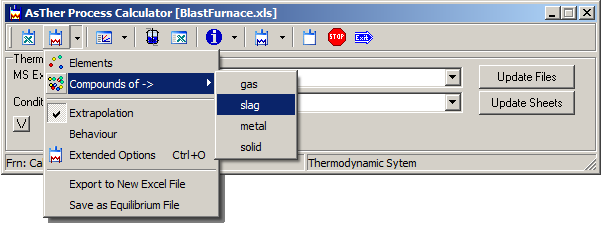
The menu "[Compounds of ->]" is visible, when the selected "Condition
Sheet" is a thermodynamic system definition
Left list shows substances in the database. Left list shows already
selected substances.
You can add substances by mouse double click or using button [ Select -> ].
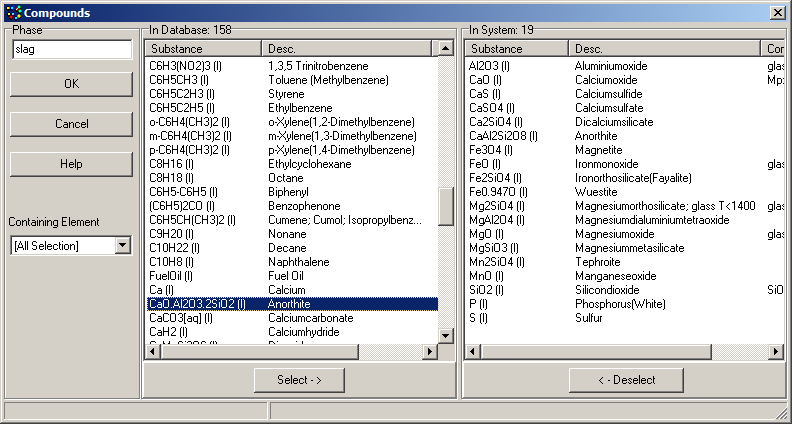
When the selection is complete, then press Button [ OK ]
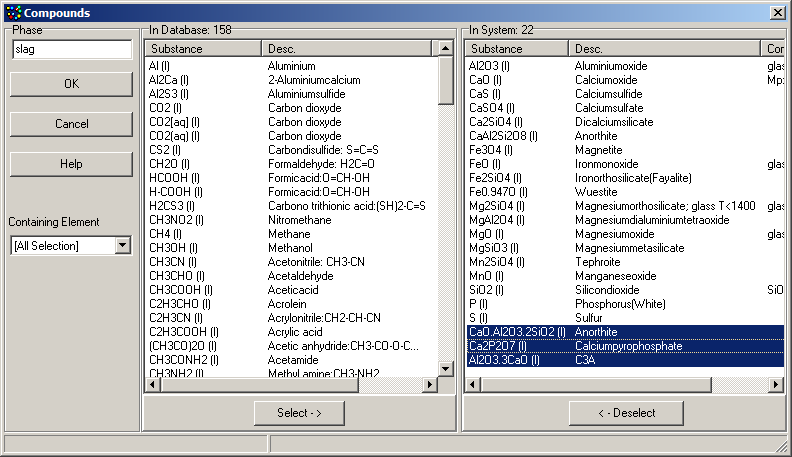
The new selections are added in the phase sheet
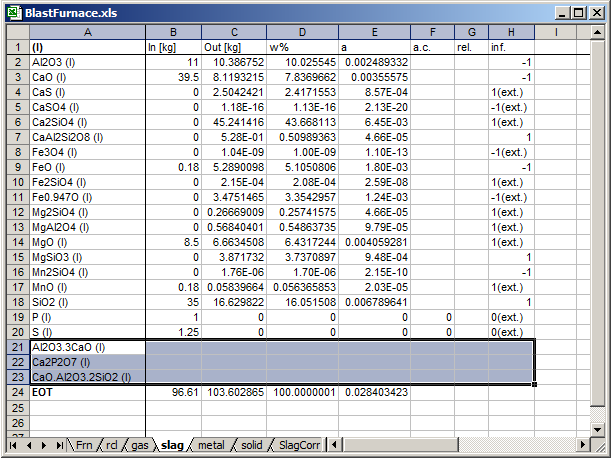
The Application never removes a substance from MS Excel tables.
You must remove substances self in the MS Excel sheets, if you want to
remove a substance from thermodynamic system.
2.2.2. Clone Compounds
Selections:
If you have already selected substances in a liquid phase like FeO (l), CaSiO3 (l),
MnO (l) . . .,
and when you want to select the same substances in a solid phase
as FeO (s), CaSiO3 (s), MnO (s),
then select the source phase in the main window as following picture
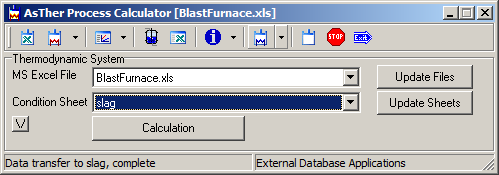
You can insert the same substances in another phase using Menu item
From [source phase] to a [destination phase].
All substances are added in the another phase, when the substances
do not already exits.
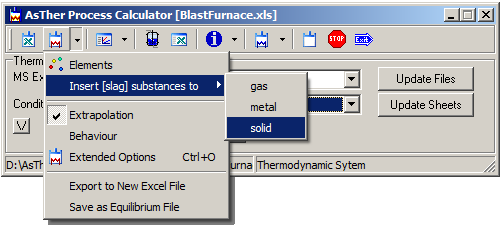
The menu " Insert Substances" is visible, when the selected "Condition
Sheet" is a phase definition.
2.3. Definition of the
Calculation Conditions
The calculation conditions temperature and pressure have to be given in
a sheet.
A1; eql: calculation conditions for thermodynamic
equilibrium
In the sheet for the condition, in the example
in the below picture FurnCond,
B2 ,Temperature value, when dimension of the temperature fails
in B1, then °C is valid for temperatures.
B3, Pressure value is in [bar] for const Pressure or Volume [m³] of
a gasphase.
When volume is given, then the sheet name of the a gas phase must be
given cell B4 (the first phase must be a gas phase).
B5, Calculation Conditions:
Accepted data: s or g; other values are ignored
g: the solid and liquid phases exist in a system, and
the phases separated clearly.
Example: a liquid metal and a liquid slag
phase exist in a not-turbulent system. For each phase is:
Σai
≈ 1
s: recommended, when the calculation is process model
of a turbulent system.
Example: Solid phase and/or liquid metallic phase
dispersed in a liquid slag phase.
Calculations using parameter s
are based on experience in process modelling of metallurgical processes.
The calculation is carried out for the
possible highest entropy of the system,
Not in every phase Σai
≈ 1
B4..I4
Phases in System : the sheet names are given by users in the cells, which are regarded in the calculation.
The sheets must exist in the same MS Excel file.
The system can contain until 8 Phases, there are until 2 gas-, until 3
liquid- and until 3 solid phases can be given.
When the calculation is succeed, then the text "Success" is written
by XProCalc.exe in the cell B1
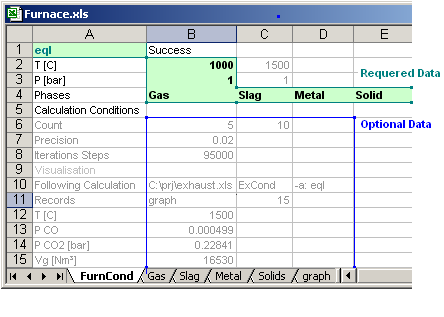
The data below the Row 5 are optional parameters
B6, Count: When a calculation executed, the count of
the
calculation is written in the cell B5;
When the number in the cell C6 is higher than the calculation
count, then a following calculation is executed.
The MS Excel file for the following process can be
defined in the cell B10.
The Following Process may be defined in the same MS Excel File or in an
different MS Excel File.
When you use the same MS Excel file for more than one processes, the
conditions should be defined in the separate sheets for each process..
B7 Precision of the calculation result.
The precision should
be less than 0.1.
A precision of 0.05 is sufficient.
Default value is
0.01.
Range is: 0<[B7]Value<1.
The multiplication by 100 of the given precision value yields
the precision value in per cent,
The value 0.02 means a precision of 2%.
When you make a process simulation, the precision value
should be
not less than 0.02.
When you calculate an equilibrium state, the value should be less
than 0.02.
An exact calculation of the equilibrium state often
causes higher difference of the real systems.
When a process simulation is intended. The value of the precision
should correspond nearly to the precision of the inputs values.
B8 Number iteration steps: The thermodynamic
equilibrium is
calculated iterative.
When no any solution is found until the given
iteration steps, the calculation is broken.
The values should be less
than 100000.
B10: The Filename and the sheet name for the conditions
of
the following calculation is given in Cells B10 and C10.
File Name can be given full path
|C:\MyDocuments\Projects\Calculation\system2.xlsx|
or relative path to the current file like following.
|..\OtherProjects\system2.xls|
when the file is already open, you can enter only
the filename without path
|System2.xls|
When you enter "*", the following calculation is in the
same MS Excel file
C10: Condition sheet of the following calculation
When you enter "*", the
condition sheet of the following calculation is in the
same Sheet.
Such calculation is useful, when one ore more conditions or
input
data in the thermodynamic system is changed in depend of the
calculations count.
Following calculation is run, when the value is more than zero
in the cell C6
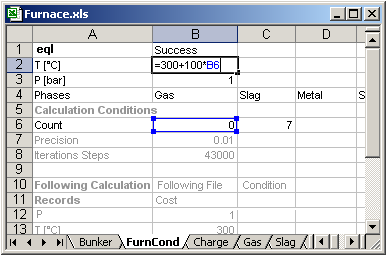
The following example shows, that the temperature is varied from 300°C
to 1000°C by steps of 100°C in depend of the calculations count in the
cells B6 and C6. 8 Calculations are carried out.
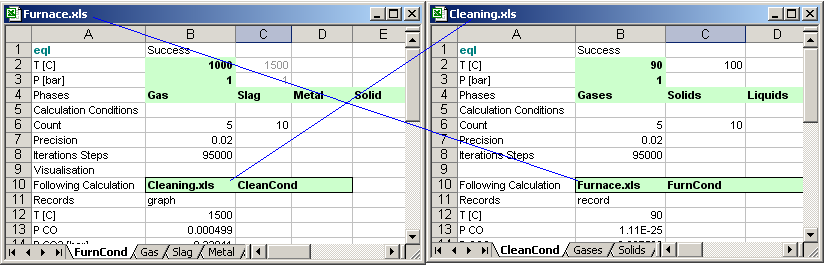
The following example shows, that the systems in the files
Furnace.xls and Cleaning.xls are calculated.
A Following calculations can be carried out, when the value in B6 is
equal to C6 or less than C6 .
B13, Sheet name for data records defined in the Cell B13
When you calculate varying parameters, you can record the selected data in
the given sheet name. in the cell B13.
After each calculation, the data in the cell B14 and the bellows B14 is
written in the sheet for data record in the rows corresponding to the
calculation count.
.In the example above left , the sheet for data record is in the sheet "graph"
In the example above right, the sheet for data record is in the
sheet "record"
More information is
4.3. Data capture and recording using
calculations
4.4. Graphic chart of the calculation result
Important for macro, calculations using link or using MS
Windows API command ShellExecute, ShellExecuteEx:
When XProCalc.exe executed using parameter, then
the condition sheet name is given after the parameter -c:
Example:
-x: C:\AsTher\projects\Furnace.xls -c: FurnCond
2.4. Execute Calculation
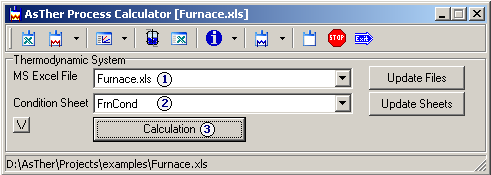
When Process Calculator for MS Excel runs, in the main window
(1): Select MS Excel file
(2): Select the Condition sheet
(3): Press button Calculations
Calculation results are written in the columns for calculation
thermodynamic equilibrium:
C: output values
D: output concentrations
E: Activity or fugacity
3. Possible Errors and Trouble Shooting
3.1. Check List, when a calculation is not carried out
Thermodynamic system must be defined in a sheet in MS Excel, see
also
2.3. Definition of the Calculation Conditions
3.1.1. In the cell [A1], eql or rcl must be
written.
eql: calculation of an equilibrium
rcl: inverse calculation of an equilibrium state
3.1.2. Temperature and pressure have to given in the cells [B2]
and [B3]
3.1.3. Thermodynamic system must be contains at last one phase.
The phases are defined in separate sheets.
The sheet names of the phases are written in the cells [B4], [C4], [D4] .
. . [I4].
Maximum 8 Phases are permitted.
When a compound exists as pure substance, a separate sheet is not
necessary, you can enter in the column for ac [F]
-1(minus one)
In the Cell [A1] in the each sheet, the state must be given, (g)
or (l) or (s).
Phase sheet must be end EOT
3.1.4. All errors are written in the message window
3.2. Behaviour of the MS Excel
When MS Excel was not open by user and Process Calculator is
executed using parameters,
then Process Calculator opens MS Excel in background.
The calculation results are written in the
MS Excel file, the file is saved und MS Excel will be closed.
When MS Excel was already open by user, then Process
Calculator shows the given MS Excel file in the active MS Excel
Window.
The results are written in the MS Excel file but the file is not saved
by
Process Calculator.
When you are going to close MS Excel, you will be asked by MS Excel, if
you want to save the changes.
3.2.1. MS Excel does usually not permit more than one access at the
same time.
When you edit a cell in a sheet (when a cell gets
focus), the application Process Calculator for MS Excel
(XProCalc.exe) can not read or write in the MS Excel file. When you are
editing a cell the MS Excel file and execute XProCalc.exe, then an error
can be occurred.
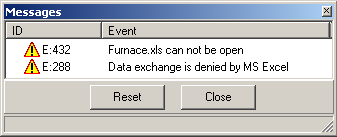
When automatic save in every (i.e. 10 minutes) is activated in MS Excel
(MS Excel Menu Extras -> Options) , read and write is not possible while
saving.
You can see error massage, that the data exchange not possible.
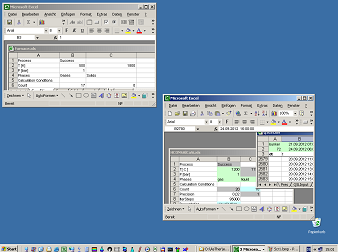
3.2.2. When more than one MS Excel applications run.
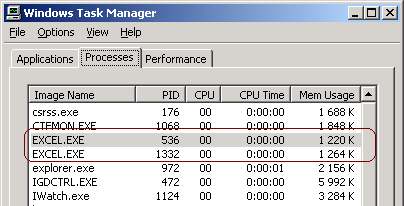
Several MS Excel Versions ore Multiple Document Application. You can
in a MS Excel Window more than one MS Excel File open. Following picture
shows two MS Excel windows. XProCalc.exe can access to only one instance
of the MS Excel windows. You can see in the Task Manager of the MS Windows, how many MS Excel
windows are open.
Execute Process Calculator for MS Excel
(XProCalc.exe) and press button to show the MS Excel, you can see, which MS
Excel Window (instance) is accessed by Process Calculator for MS Excel.
The MS Excel window can be shown, even if the window was hidden.

3.2.3. When no any MS Excel window is open
When you execute XProCalc.exe using parameter as following,
-x:C:\AsTher\projects\Furnace.xls -c: FurnCond
-s:
and no any MS Excel window is open, XProCalc.exe execs MS Excel in
the background, you can not see
Furnace.xls
You can avoid the problem, when you execute MS Excel before
XProCalc.exe is executed.
3.3. when the mass-conservation is not possible, the calculation will
be terminated. For example, if elementary
oxygen (O2 (g) or O (g) ) does not exist ina system
consisting of the elements H and O, when only the substances H2(g) and
H2O(l) for the calculation selected, the calculation is impossible for 1
bar and 1000 °C. Calculations are broken .
To avoid this, it is
recommended to include first time all possible substances into the
calculation. You can deselect substances from the calculation system,
when it is secure, that the deselected substances can not be exist in
the system.
Height number of substances causes long calculation time and
imprecision. The thermodynamic data set of the rare substances
may be some times approximated. It is also difficult to overview.
Low number of substances causes fast calculation time. It is easy to
overview. But the calculation may be incorrect, because the
system may be not complete.
An optimum is often individual to decide.
3.4. Error messages related to operations system may occur
due to excessively high values of the free energy of a substance, so
that the processor can not interpret the value. In this case, please
check the thermodynamic data set.
3.5. Two reaction systems with high different quantities may produce
erroneous results.
Example, when a system consisting of Fe, Cl2, FeCl2, H2O,CO,CO2,N2,NO.
wherein one reaction system is consisting of Fe-Cl2-FeCl2 and the
other consisting of C-CO-H2O-N2-NO.
If the inputs of the calculation is 10000 mol FeCl2, 1 mol H2O and 1
mol N2, 0.1 mol C, and the precision is 0.01,
the calculation result may be incorrect for the system C-CO-H2O-N2-NO.
It is recommended to calculate in separate systems.
3.6. Pure Substances :
If a substance my be exists as a pure substance (and accordingly the
activity coefficient has been set to (1) in the a.c./f.c.- column,
please check after the calculation, whether:
- the info column shows the value 1,
- the amount of that substance is more than 1e-23 mol,
- the calculated value or the activity is nearly 1.
If not, those substances should be excluded from the calculation, e.g.
by setting the a.c.-value to 0.
3.7. An Obviously Erroneous Result (e.g. the formation of liquid Fe at 20
°C), although the calculation results keeps consistent.
This may happen, if the extrapolation is enabled and the extrapolated
data itself are unusable.
With the application Pure Substance, you can follow the course of the
free Enthalpy in graphic and table window in order to check the
validity range of the required dataset.
3.8. Erroneous calculation can be caused by the incomplete
definition of the system. The system can be influenced by mass of the gaseous
substances, although these substance can not take in any reaction. The
results of the calculation will be is different in a system consisting
of CaO, CaCO3, CO and N2, when the mass of N2 is different, although N2
does not react.
4. Advanced options
4.1. State functions Cp, H, G, S
and Energy Balance
You
can get the values of the state functions in the column [I] and/or [J].
When you enter in the Cell [I 1], [J 1] one of the following chars,
For Specific heat: Cp or Cp[J/mol K] or Cp[J/g
K] or Cp[kJ/kg K] . . .
For Enthalpy: H or
H[J/mol] or H[J/g] or H[kJ/kg] . . .
For Entropy: S
or S[J/mol K] or S[J/g K] or S[kJ/kg K]
. . .
For Free energy: G or G[J/mol] or G[J/g]
or G[kJ/kg] . . .
For Mol weight: M or M[g/mol]
The temperature and pressure of the state functions corresponds to the value in B2,
B3 in the conditions sheet,
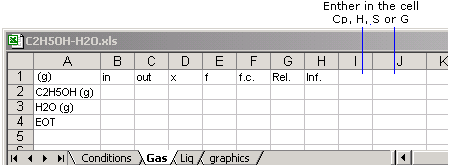
The values of the state functions are written in the columns I and J after each calculation.
It is useful, when the temperature of the thermodynamic systems is changed
during calculations.
The values of the state function is written only one time in the column
[K] and after [K], as the following picture shows
(1) Main window Menu, select State functions
(2) In the following dialog box
Select state
function, dimension and column to write
(3) Press button "Set"
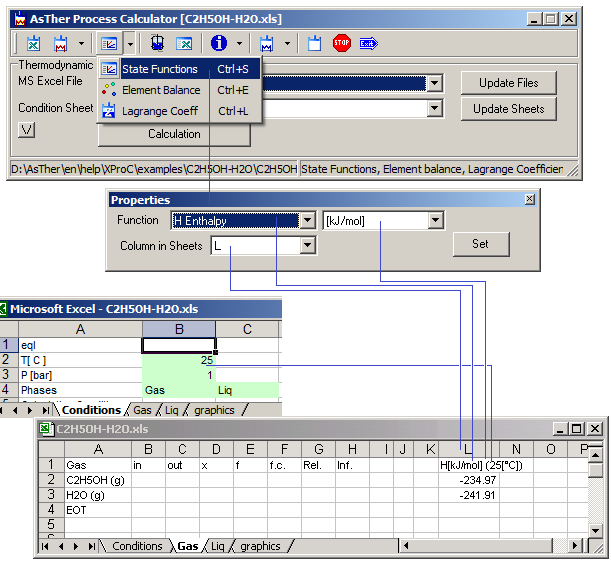
when no any value exists in the cells I2 to I256.
You enter another value for the temperature in the cells I2 to I256.
When you cut the values from J and paste into columns K or
after K,
the calculation time will be faster, because the data
write/read in MS Excel files costly in terms of time
Corresponding to the data of enthalpy and the mol weight, you can
calculate heat balances.
4.2. Element Balance
the distribution of the elements in the substances of the thermodynamic
system can be shown in a new MS Excel book
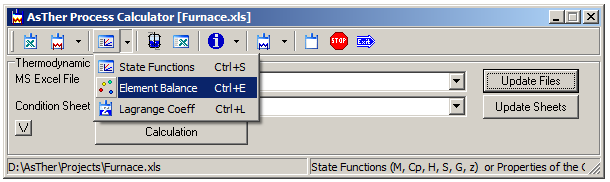
4.2.1. Press button for Element Balance, a dialog box will be
shown, in which the element can be selected to balance.
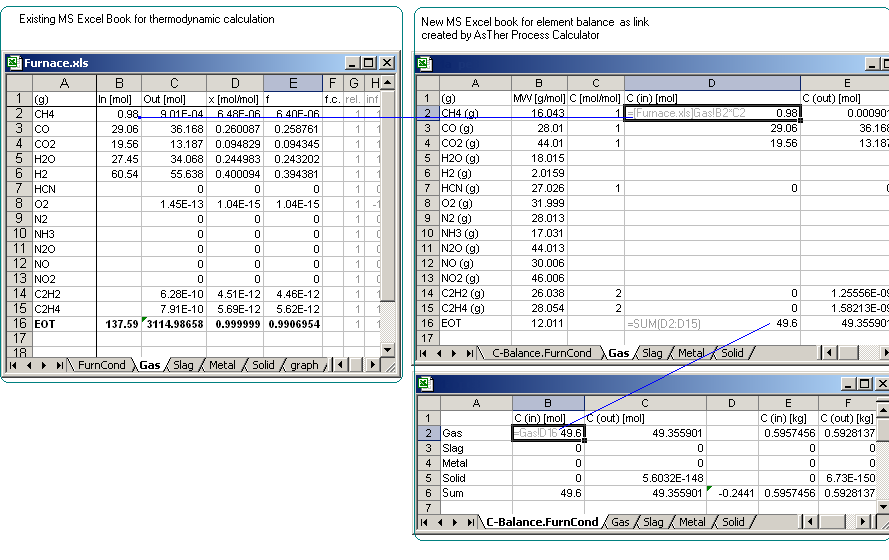
When the button Create Balance is presses, a new MS Excel Workbook is
created by application Process Calculator for element balance.
The new created book contains links to the MS Excel book, in which is the
calculation of the equilibrium state is carried out.
4.2.2. Possible errors in element balance
The dimension for In-Columns and Out-Columns
should be given as [g], [kg], [lb] or [Nm³] in the
thermodynamic system.
When the dimensions for In-Columns or Out-Columns are given
[l] (liters), [m³] or [ft³] and,
when the temperature
of the thermodynamic system is changed, then the element balance is not
correct.
The calculated
values for input and outputs in the element balance depends of the
temperature and pressure of the thermodynamic system,
when the dimensions are
[l] (liters), [m³] or [ft³] .
4.3. Inverse calculation of an equilibrium system
When several values of the concentrations are known, the application
calculates the other concentrations in an equilibrium system corresponding
known concentrations. The possible temperature and/or pressure can be
estimated in an equilibrium state corresponding to given conditions or
measurements.
When the concentration of the CO2, H2O, N2, NH3 are known as reference
measurement in a thermodynamic system consisting of the elements C, O, H,
N, the concentration of the other substances with the system elements
(like CO, N2O, NO, HCN, CH4 etc.) can be determined.See also
Example for inverse Calculation
using AsTher Process Calculator for MS Excel
4.3.1. Conditions Sheet
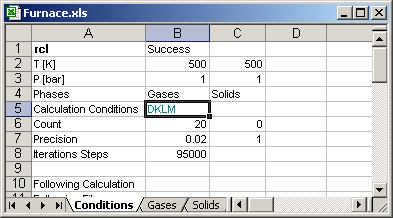
[A1] must be written "rcl". rcl means, that the
conditions are used for inverse calculations (recalculation
of the thermodynamic system)
The temperature und pressure are written in the condition sheet in the
cells [B2] [B3]
Sheet names for the phases of thermodynamic system are written in the
cells [B4], [C4], [D4]... [I4],
When no any entry exits in the calls [B5], [C5], [D5], ... [I5],
then:
Column [E]: Measurements or the known concentration, activity,
fugacity of the substances are read by the application .
Column [K]: "x" is written, when the corresponding value in column
[E] used as reference.
Column [L]: Calculations results are written by application.
You can use another columns for the calculation, when you write the column
letter in the Cells [B5] to [I5],
bellow the sheet names of the phase
The letters BDE means:
Colum B in the phase sheets contains values of the references or
measurements
Colum D in the phase sheets contains, which references or
measurements are to use for the calculation
Colum E is to write the calculation results
When no any data entered, default value is EKL
When DKLM is written, then in the column M is written, if
the thermodynamic data is extrapolated.
7.3.2. Phase Sheets
When a concentration or fugacity value in column [E2] to [E256]
conducts to reference,
the letter "x" must be written in the corresponding cells [K2] to [K256]
in the phase sheets
Calculation results are written in the column [L2] to [L256]
4.3.3 Calculation
when button Calculation is pressed, then the calculation will be carried out
When no any data is written in the cell [B5], [C5],[D5]... [I5],
Default values are:
Column E: are measurement;
Column K: contains references indicators "x";
Column L: calculation results
Column M: information
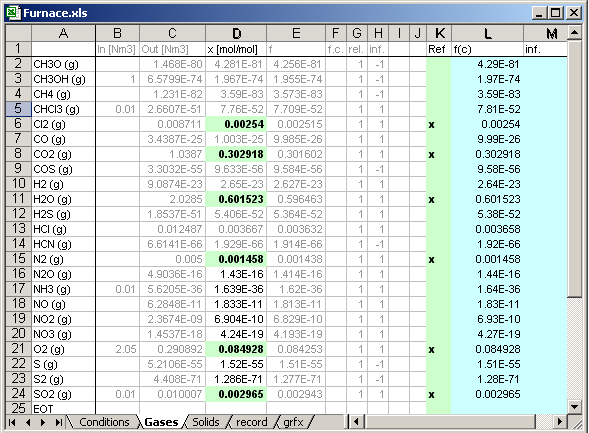
In the example bellow, the measurements are given in column D.
Calculation Results are written as following.
Green cells: given data by user for the calculation,
Blue cells: written by Process Calculator as calculation result.
The concentration value of Cl2 (g) [D6] used as reference
measurement, because the cell [K6] contains "x",
calculated value is written in the cell [L6]. In the Cells [M6] is
nothing written by application,
because thermodynamic data of Cl2 (g) is not extrapolated.
4.4. Data capture and recording using
calculations
When you calculate the system and vary parameters, you can record the
defined data.
The record variables must be given as link, as the following example
shows.
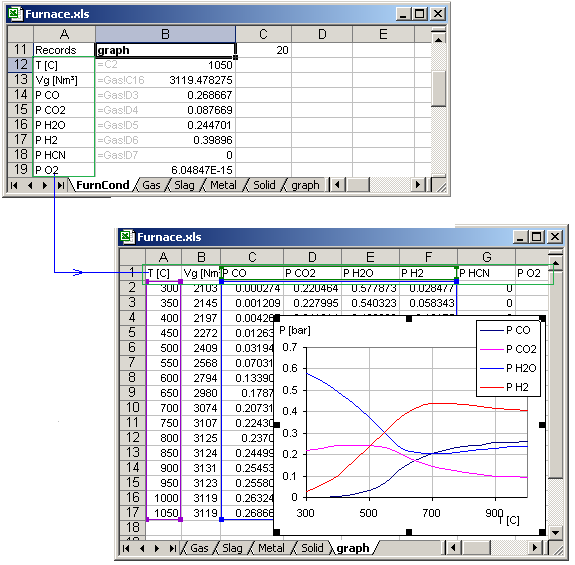
In the example above:
Variable names are given by user in the cells from [A13] to [A20].
Variable values are written by user as link in the cells from [B13]
to [B20].
The definition of the graphic is leaved to user.
The rows of the written data in the Record-Sheet (in the example above
graph) always correspond to the calculation count
in the cell B6 of Conditions-Sheet.
When the calculation count is 0 (zero), then the cells A13 to A20 are written
by application in the row A1, A2, .. A8 in the sheet "graph"
(Because graph is given by user in the cell cell [B12])
4.5. Graphic chart of the calculation result
Creation of the graphic is leaved to user. The application AsTher
Process Calculator for MS Excel does not make
graphics.
Following link shows an example for graphics
8.3. Carbon gasification by
Water in depends of temperature and pressure, Create graphics using different
parameter.
4.6. Visual display of the calculations
results
You can display significant data of the calculations in a window.
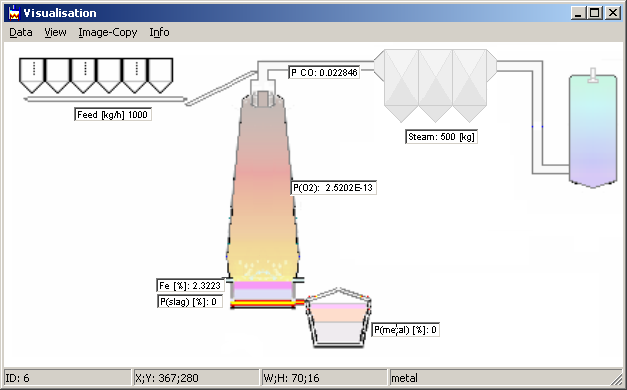
Data are to write given format in a sheet. The sheet name is given in
the [B9] of the conditions sheet.
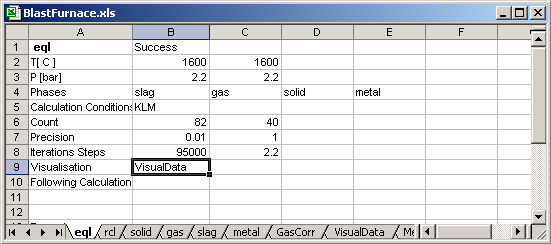
Column A In the Visualisation sheet
I: Filename of the background picture. Bmp- or Jpeg-File.
File path can be given as relative path from the current MS Excel
file,
Example ..\x,bmp, C:\picture\y,jpg
Default no picture
F: Font name. Font size is given in column B, Default system Font
W: Position of the Visualisation-Window on screen given in column
E,F,G,H for top, left, width, height. Default no any fixed position.
H: A PDF, text, HTML or a document that describes the current MS
Excel file as input and output file for the AsTher Process Calculator.
File path can be given as relative path from the current MS
Excel file.
Example ..\docs\x,pdf, C:\documents\y.doc, notes.txt
1....96: Field ID the in the Visualisation-Window.
Column B,C
The Fileds in the visual window contain the strings from [Bn] and [Cn],
where n: 1..96
Column D your own comment
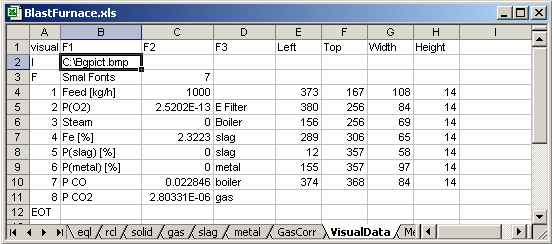
Column E, F, G, H
Left: distance of the Field from left site of the window in pixel.
Top: distance of the Field from top site of the window in pixel.
Width, Height : Field dimensions in pixel.
Hint: Haw you can change the size and positions of the data fields
4.6.1. Press the [ctrl] key and the [left] mouse button same time and
move the mouse to change the position of a data field
4.6.2. Press the [ctrl] and [Arrow] keys (left, right, up or down)
same time to change the position of a data field
4.6.3. Press the [alt] and [Arrow] keys left or right same time to
change the width of a data field
4.6.3. Press the [alt] and [Arrow] keys up or down same time to
change the height of a data field
and important
Visual-Window, Menu [Data]->[Save Postion]: the current positions are
written in the sheet for visualisation
4.7. Calculations
Using Parameters or Macro
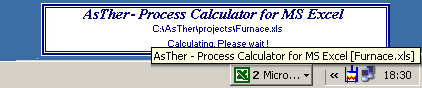
When the application XProCalc.exe is executed using parameters without -s:,
the
application closes immediately after the transfer of the calculation
result to MS
Excel file. You can see only the icon in the MS Windows Task Bar and the
calculation progress, while the calculation runs.
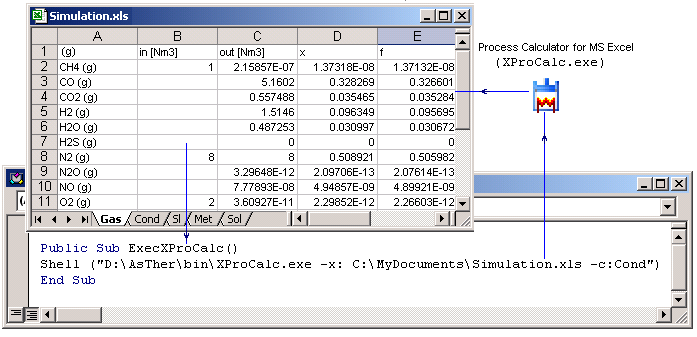
The application XProCalc.exe can be executed also
with
defined parameters, like following example shows.
The parametric calculation carried out with the MS Windows commands
ShellExecute or MS Excel Macro Command Shell
Shell("C:\Programs\AsTher\bin\XProCalc.exe -x: C:\AsTher\Projects\Furnace.xls
-c: FurnCond -s:")
Valid parameters are
-x: is always the first parameter. The name of the MS
Excel
file follows -x:
Blanc character or specific character should not be used in the file
name.
The application breaks calculation, and shows error message, when the
file does not exist.
Parameter -x: is necessary.
-c: is always the second parameter. After -x:,
the name
of the sheet is given, which contains the calculation conditions,
temperature, pressure, and the name of the sheets, which contains the
thermodynamic system.
-r: Read only, The calculation will be executed, but no
any cell
in the MS Excel file is written after the calculation.
The application is not closed.
When the parameter -r: exits, then the parameter -s: takes
no any effect.
Parameter -r: is optional
-s: Process Calculator for MS Excel is usually closed,
when a calculation is
executed using parameters and succeed.
The application will not
be closed, when the parameters contain -s:, even if a calculation
is succeed.
You can see messages of the application.
Parameter -s: is optional
-t: Process Calculator for MS Excel is usually not closed,
when an error occurs, independent of the parameter -s: is given.
You can force the application to close after a calculations using
parameters, independent of the calculation succeed or an error occurred.
When you enter parameter "-t: 15", the application shows calculation state
for 15 seconds before termination.
Parameter -t: is optional.
When the parameter -t: is given, and if an error occurred, you my
not directly see the error messages.
When the MS Excel book can not be open.
You have to check the calculation count before and after the calculation
in the Condition-Sheet [B6].
When the calculation count is the same before and after the execution
using parameters, then no any calculation is carried out.
When the Process Calculator for MS Excel (XProCalc.exe)
executed without parameters, a widow is shown.
In the window, you can create the parameter string with mouse clicks.
When the Button "Search" is pressed, in the following
dialog
box, you can select a MS Excel file.
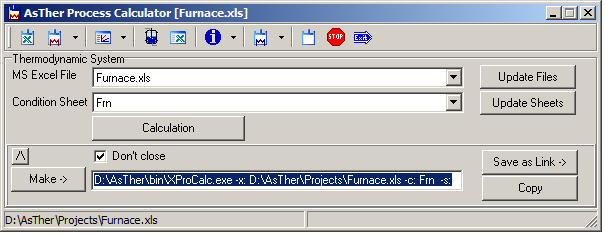
After the file selection, the sheets names of the selected
Excel file
are shown in the selection box.
In the selection box "Conditions Sheet", the sheet is to
select, which contains the calculation conditions.
Button "Make ->" creates the parameter string.
Button "Copy" the parameter string is copied to the
clipboard.
Button "Calculation" runs immediately XProCalc.exe .
When Read only is not selected, the calculation results are
written in the MS Excel File.
Important: When you do not select "Don't Close"
the application
is
terminated
immediately after the calculation, when the button "Calculation"
is pressed
and when no errors are occurred.
Button Help, the help file will be shown.
Button Exit: Only the window is closed. The application
runs, and you can see the application icon in the taskbar.
8. Examples
|